
If you are not aware, there are ways to pin message conversations on an iPhone to the top of the Messages, and its all thanks to the fresh software update, iOS 14. As long as you have updated your iPhone to iOS 14, everything else is not complicated.
Page Contents:
This fresh feature lets you pin up to 9 conversations to the top of the app for simple access, and it is possible for you to add and delete pins whenever you want. Be aware that after pinning these conversations, all unread messages that are not part of those convos will be visible under your pins. See How To Pin Message Conversations On Your iPhone In iOS 14:
How Can I Pin Message Conversations On My iPhone With iOS 14?
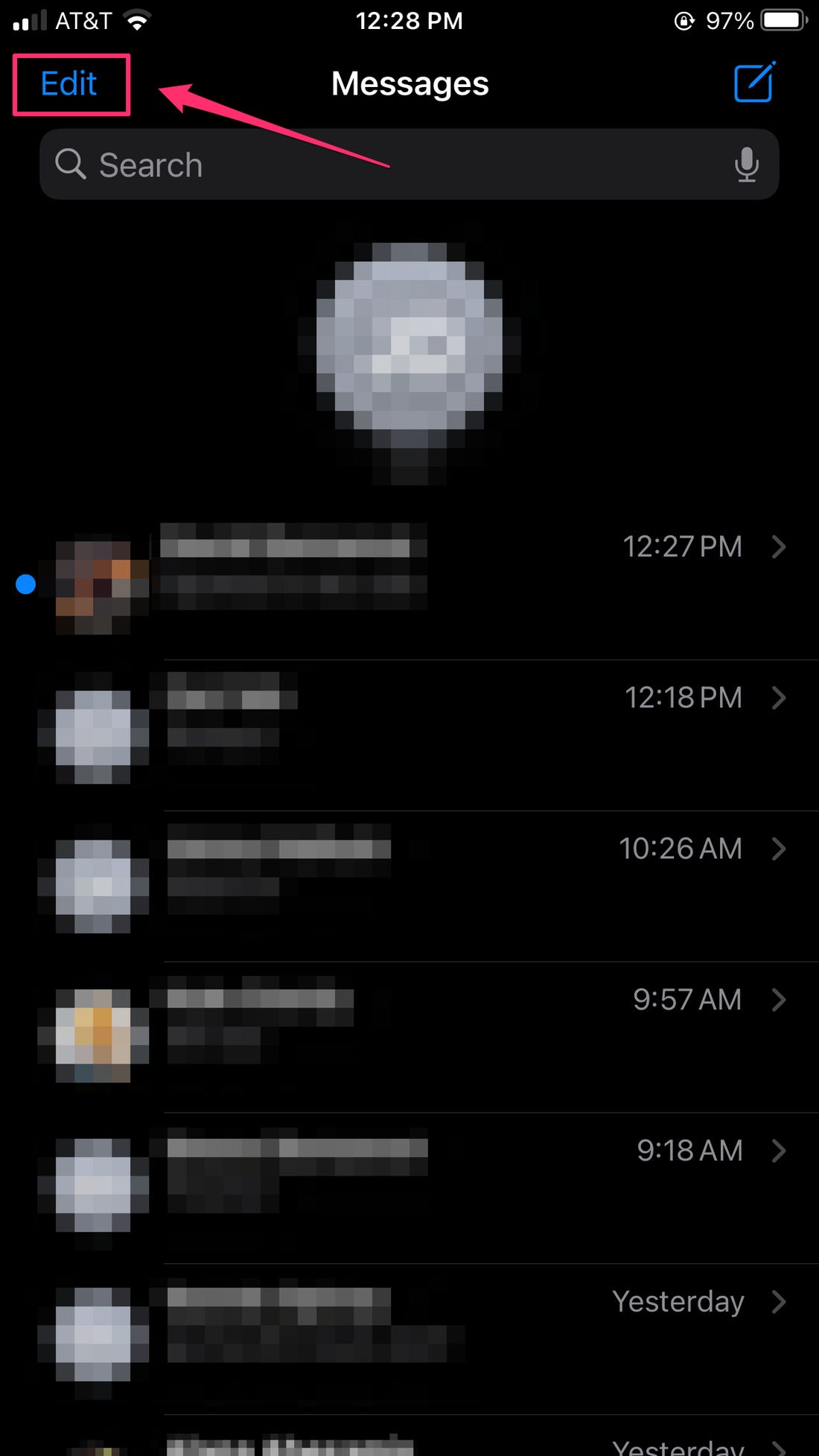
- Head to the Messages application.
- In the top left corner, click “Edit.”
You Might Also Want To Read: How to free up space on iPhone
- Click “Edit Pins.”
- Pin messages to the top of the application by clicking the yellow pin icon close to the conversation.
- When you are done, click “Done.”
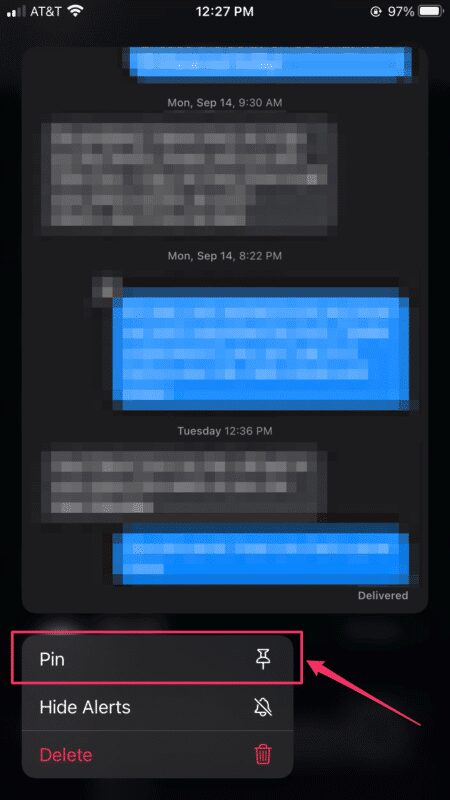
Or, you can pin a convo to the top of the application by pressing and holding your finger on a conversation, then clicking “Pin.”
You Might Also Want To Read: How to download Instagram videos on iPhone easily
How Can I Unpin Message Conversations On My iPhone With iOS 14?
- Head to the Messages application.
- In the top left corner, click “Edit.”
- Click “Edit Pins.”
- Click the minus “-” symbol close to a name to unpin the conversation.
- When you are through, click “Done.”
Or, you can unpin a conversation by pressing and holding your finger on a conversation, then clicking “Unpin.”
That is that.