
You all knows keeping your iPhone updated the best things you can do it helps to improve performance, security, and access to better features. Apple regularly releases updates to enhance speed, and introduce new tools so upgrading your iOS is essential.
Page Contents:
people keep asking what is IOS?
iOS is the operating system that powers every iPhone. It controls everything in the iPhones starting from apps and settings to security and performance. You can also imagine iOS as the brain of your iPhone. Because It manages Apps like WhatsApp, Facebook. iOS makes your phone work smoothly by Providing updates with new features.
Why You Should Upgrade Your iOS
We all knows iOS is the software system that gives powers to your iPhone and makes it usable.Upgrading your iOS gives you: Better security protection, it will Improved the speed and performance of your iPhone, Fixes for bugs and glitches.
Requirements we should know Before You Upgrade your IOS
Before upgrading your IOS make sure you have: A stable Wi-Fi connection, At least 50% battery or better still plug in your charger while doing that, make sure you have Enough storage space and a recent backup of your data.
Steps on how to Upgrade Your iOS
1: Back Up Your iPhone
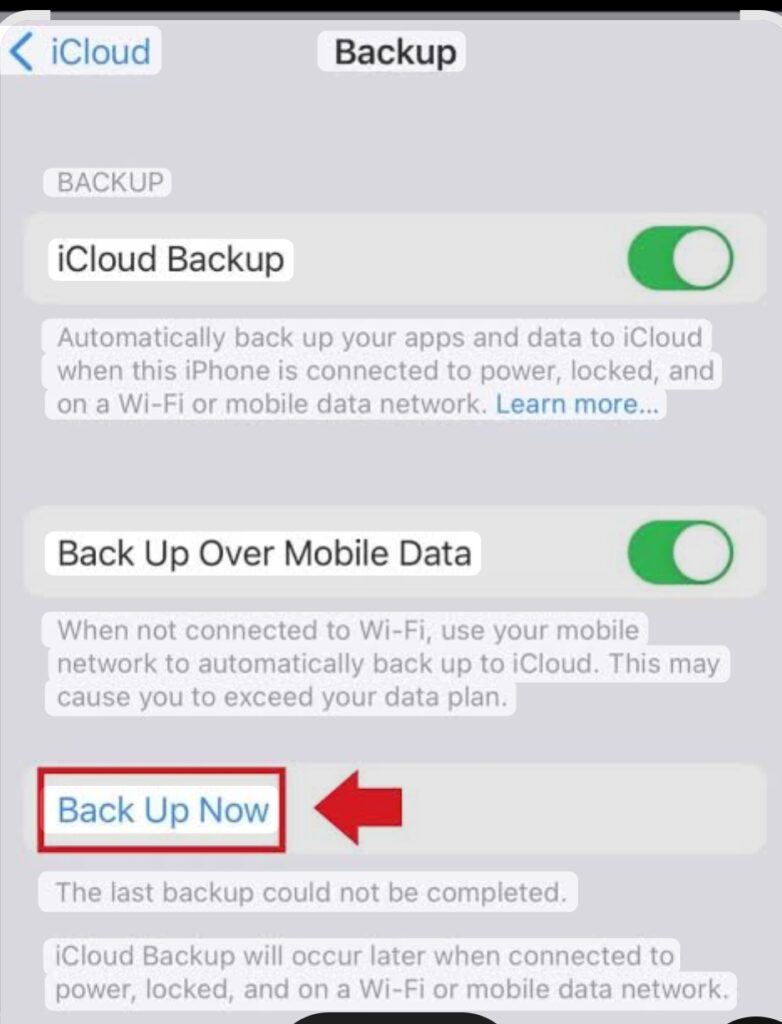
backing up your iPhone is to secure a copy of your device’s data including settings, app data, photos, and messages that are stored in iCloud or on a computer. This helps to restore your information if your device is replaced, lost, or damaged. In doing this go to your sittings ,Tap your name,Select iCloud, Backup Now
2: Connect to Wi-Fi and Power
Updates require stronger internet and a better battery in doing this.
3: Open Software Update
Go to Settings,Tap General,Tap Software Update
4: Download the Update
If an update is available, make sure you tap Download and Install then Enter your passcode to Accept Apple’s terms and conditions
5: Install the Update
Tap Install Now and your iPhone will restart automatically
6: Wait for Installation
During installation You’ll see the Apple logo and a progress bar The phone may restart once or twice make sure you don’t turn off your phone or interrupt the process.This usually takes 10–30 minutes
7: Complete Setup
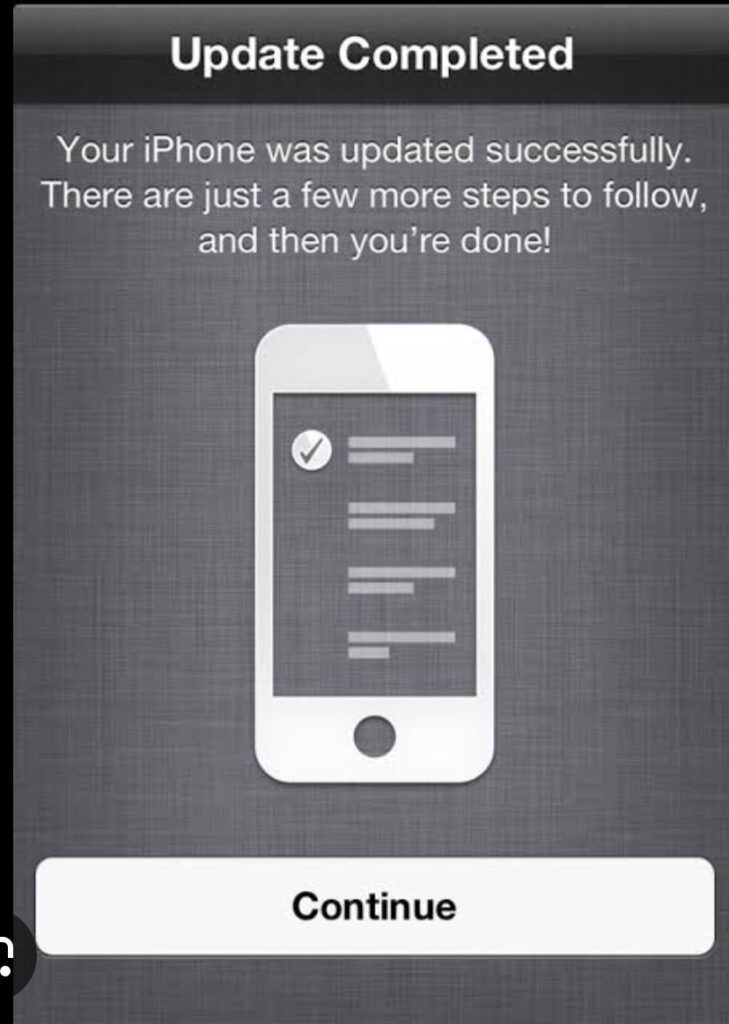
After the installation you should enter your passcode and Follow any screen instructions you see after that Your iPhone is now updated
Final Thoughts
Upgrading your iOS is simple and takes just a few minutes, but it brings long-term benefits like better security, improved speed, and new features. By following the steps above, you can safely update your iPhone without any stress.