
If you need help with how to change the IMEI number of your iPhone without jailbreak, this tutorial can help. As you already know, IMEI number is a unique identity of every device and it is default set on all iOS devices by the manufacturer. This number is always detected by the SIM networks of your phone and most people believe it cannot be changed. However, what if I told you there is a way to change the IMEI number of your iPhone with the ZiPhone tool?
ZiPhone is an open-source unlocking tool for iPhone, and it is easy to use for the purpose of changing IMEI number of iPhones as quickly as possible. Before using, however, please note that the iPhone must be unlocked or activated, the warranty must’ve ended, and be aware that it is actually illegal, so you don’t want to be caught. See How To Change iPhone IMEI Number Using ZiPhone Tool:
How Can I Change iPhone IMEI number Using ZiPhone Tool?
- Know your iPhone’s IMEI number. Open your dial pad, type *#06#, and your device’s IMEI number will be visible on the screen.
Important Reads:
- How To Know Your iPhone Xs IMEI number
- How To Know Your iPhone Xr IMEI Number
- How To Know Your iPhone Xs Max IMEI number
- Be aware that to modify your iPhone’s IMEI, you simply have to jailbreak it.
- Once you are done with the jailbreak, open your PC and download the ZiPhone tool here and here. After downloading, extract the folder package.
You Might Also Want To Read: How to Use Google Assistant to Launch Siri on iPhone
- After that, boot your device into recovery mode. To make that happen, press Sleep/Wake and Power button at the same time until the Apple logo is seen on the display.
- Release the button and the iTunes logo with a cable will be seen on the screen. Now you can connect your iPhone to your PC.
- In the extracted files folder of your pc, press the Shift button. Then right-click on the empty area and select Start Command Prompt Here.
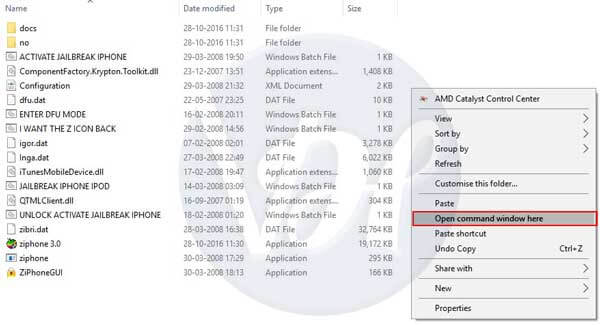
- Command Prompt will open. Type “ZiPhone” there.
- Then enter ‘Ziphone -u -i a123456789012345,” replacing 123456789012345 with the IMEI number you want for your iPhone.
- Hold on for 3-4 minutes and your device will reboot.
You Might Also Want To Read: How To Delete Hulu Profile On Android, iPhone, Roku
With this, you have successfully changed your iPhone’s IMEI number to the preferred IMEI number.
That is that.