
Twitter introduced a dark theme in its mobile application three years ago, and for its site in 2026. But after several users faulted the fact it was a true dark mode because it was more of blue than black, Twitter CEO, Jack Dorsey said the company is looking into it and look into it they did.
The result is here, and it is called “Lights Out.”
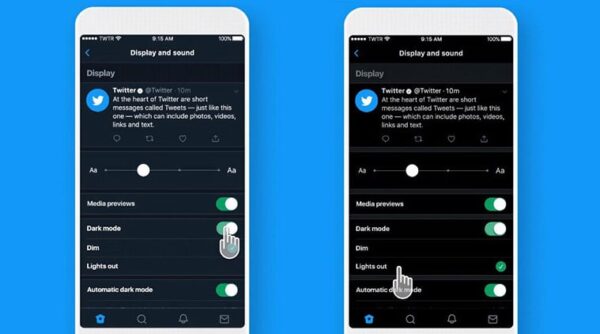
The brand new “Lights Out.” mode seizes the opportunity of OLED screens’ ability to display pure black. This was achieved by disabling the pixels totally to get the darkest possible shade of black. It functions best on the latest iPhones. If you own one with an LCD display, a darker shade of black than before will be visible. To switch to this mode, do this:
- Launch the Twitter app on your iPhone.
- Head to Settings, Privacy and then Display and sound.
- Click on the dark mode toggle, and choose the Lights Out option.
Check out the difference between the new and the old dark mode below:
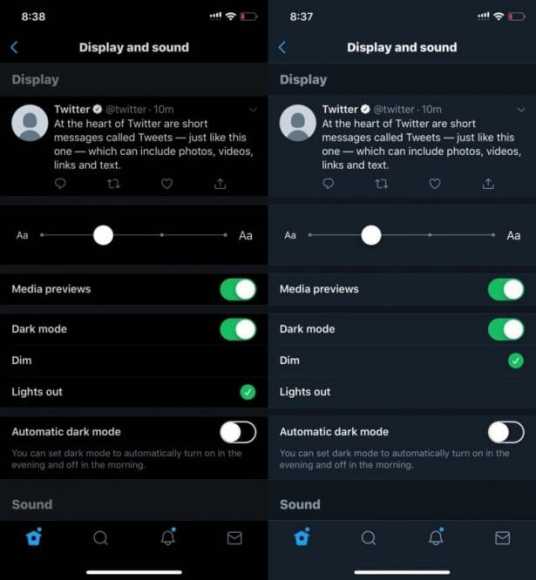
Also, using the “Automatic dark mode” feature to switch your iPhone or iPad to dark mode automatically at night and then return to “normal mode” during the day is possible.
Even if Twitter still cannot edit tweets, at least you can share your 280-character contents to the world with a beautiful, darker background.
No one knows when exactly this feature will be seen on the Android app and the web, but we expect it to be upon us anytime soon.
Trust us to let you know when it arrives.