
Getting specific contacts marked as VIPs in Mail is a massive way to sort your messages to separate the ones that should make your general inbox their home and the ones that are very vital and are from those that are very dear to us.
Page Contents:
On Mac and iOS, it is possible to open a special inbox that will only reveal emails from your VIP contacts. Ain’t that cool?
However, how do you make that happen? How can you add a contact as a VIP in Mail on your Mac? Relax, it requires a few taps in Mail.app to enjoy this feature and the process of getting it done is identical to what needs to be done on iOS devices.
You Might Also Want To Read- How To Seamlessly Connect Bluetooth Headphones To Your Mac Computer?
How Can I Set A Contact As A VIP In Mail On My Mac?
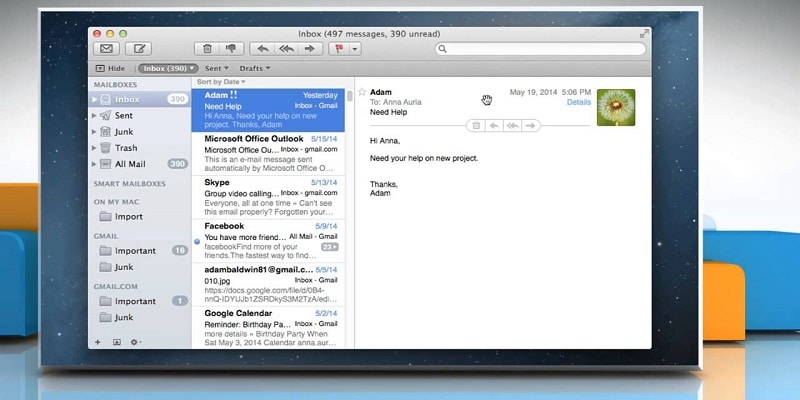
- Get Mail opened from your Dock or Application folder.
- Tap on any email from the individual you intend to mark as a VIP.
- Tap the arrow that becomes visible when you hover over the individual’s email account’s name inside the “From:” box.
- Tap “Add to VIPs.”
And you are done. The individual’s emails will now be visible in your VIP folder, plus it will begin to roll with all VIP-connected notification settings on your device.
To get rid of anyone form your VIP list, adhere to these instructions too:
You Might Also Want To Read- How To Disable Apple News Notifications On Mac
How Can I Remove A Contact As A VIP In Mail On My Mac?
- Get Mail opened from your Dock or Application folder.
- Tap on any email from the individual you intend to remove as a VIP.
- Tap the arrow that becomes visible when you hover over the individual’s email account’s name inside the “From:” box.
- Tap “Remove From VIPs.”