
Websites can send you notifications on both your smartphone and computer. Sometimes that is very useful, but not every website is just as good at it. In this article, we explain how you can turn the notifications per website off or on.
Page Contents:
How to Subscribe to Website Notifications in Chrome
Websites can now send you notifications in Chrome. Also on your smartphone, provided you have an Android device. To receive these notifications, you must first give permission. When you visit the website in question, you will see a pop-up. With the screen, you will be asked if that website can send you notifications. For example when there is big news. You can then choose to allow it or block the notifications.
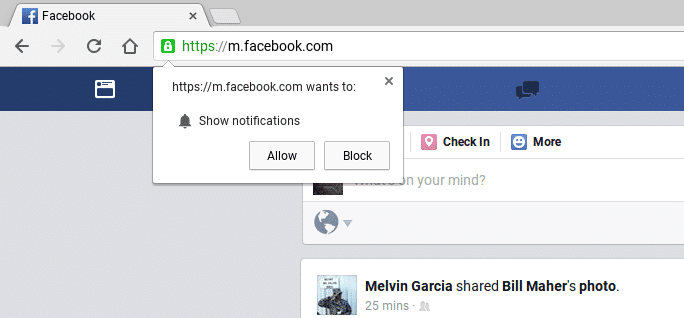
However, some websites send so many notifications that you may be fed up. It also happens that you accidentally gave permission, because you wanted to click away from the pop-up screen. But then again, how do you put these notifications out? Fortunately, that is still possible, although the menu in Chrome is well hidden. In this article, we explain to you exactly how to turn off website notifications for a specific source in Google’s browser.
Unsubscribe/Disable notifications in Chrome
Desktop: click the three dots at the top right. Then select from the menu for ‘Settings / Settings’. Scroll down and click on ‘Advanced / Advanced’. Under the heading ‘Privacy and security / Privacy and Security’ you can now choose ‘Content settings / Content settings’. Then choose ‘Notifications / Notifications’. Now you get to see a list of all websites that are allowed to send notifications. You can press the three dots next to a title to delete the website. In this screen, you can also add websites that you have previously blocked.
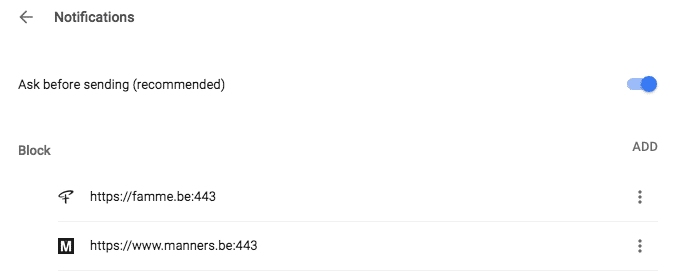
Mobile: Open your Chrome app, and press the three dots at the top right. Then choose ‘Settings / Settings’. Then click on ‘Site settings / Site settings’. Scroll down and press ‘Notifications / Notifications’. By pressing a website you can now delete the permission you have given previously.
Do not want to miss the latest news? Then sign up for our newsletter below. Or just add TechVaz via the above steps. We will send you a minimum notification per day.