
Are you tired of notifications popping up on the screen of your Android phone from time to time? Well, I bring you good news, you can actually turn them off whenever you want. As you already know, immediately your mobile device is unlocked, users mostly see lots of notifications across the top of the screen, and they could be overwhelming at times. If you are not aware, Stock Android 11 is also home to a notification bubble feature that reveals a floating icon on top of apps to quickly reply to it. Not to worry though, to avoid this stressful situation, see How To Turn Off Pop Up Notifications On Android 11:
Page Contents:
How To Stop Pop-up Notifications On Android 11 Stock OS?
You can activate or deactivate pop-up notification bubbles for a chat on Android 11 stock OS by adhering to the instructions below:
- Head to Settings.
- Tap “Apps & notifications.”
You Might Also Want To Read: How To Reset Network Settings On Android 11
- Tap “Notifications.”
- Tap “Bubbles.”
- Ensure “Allow apps to show bubbles” is toggled on or off, your choice.
How To Stop WhatsApp Bubble Notifications (Pop-up) On Android 11?
- Head to “Phone Settings.”
- Click “Apps & Notifications.”
- Click “See All Apps.”
- Select the App (WhatsApp,) and ensure you turn on bubbles on it to view pop-up notifications.
- Click “Notifications.”
- Click on the Conversations you wish to disable pop-up notifications for.
- Swipe down at the end of the page and click “Advanced.”
- Ensure the “Pop On Screen” is toggled off.
You can also deactivate app notifications using the given settings in your stock Android 11 OS.
- Scroll down the notification shade from the top and click “Settings.”
- Click “Apps and Notifications.”
- Click “See All Apps.”
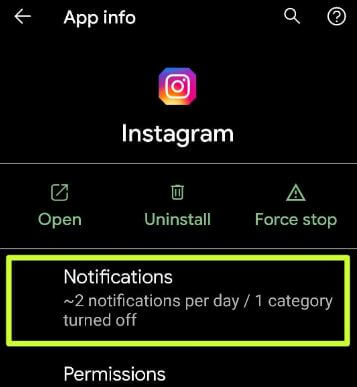
- Select the App from the list.
You Might Also Want To Read: How To Use Gesture Navigation In Android 11
- Select “Notifications.”
- Ensure “Show all notifications.” is toggled off.
After doing this, notification pop-up will no longer be visible on the home screen & lock screen henceforth.
That is that.