
Using multiple emails addresses on one Google Account can come in handy when you need to have different emails but want to manage all those emails using just a single Google account. Without further ado, let’s get right down to how you can use multiple emails addresses on one Google Account.
Page Contents:
How To Use Multiple Emails Addresses On One Google Account
This process is the same for both PC and Mobile (iOS and Android) but this particular tutorial; I’ll be making use of an Android phone.
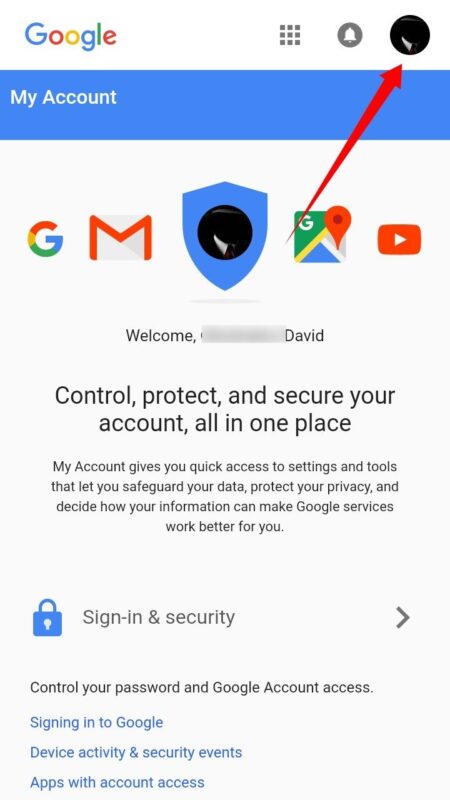
- Goto My Google Account Page. (If you have an account or accounts logged in, you will see the profile picture at the top right corner of the screen. Meanwhile, If you do not have any profile picture then you will get the first letter of your first name)
-
If you aren’t Logged In, then Log In.
-
Click on your Google account Profile Picture at the right-hand corner or the First Letter of your first name if you have no profile picture.
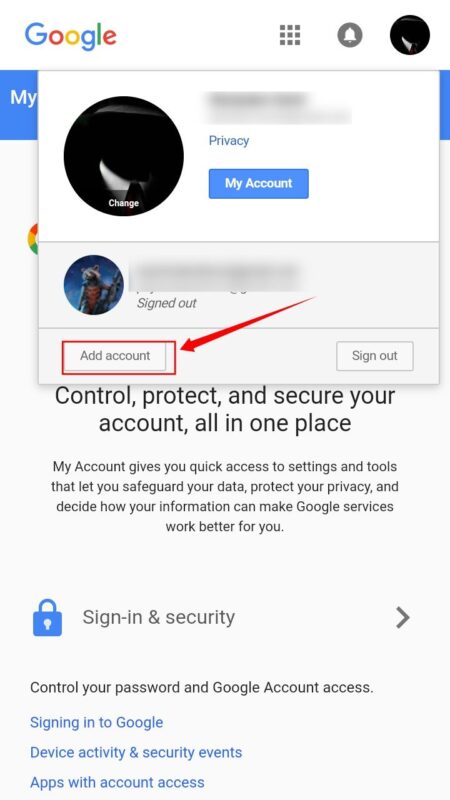
- Click on Add Account from the drop down Menu.
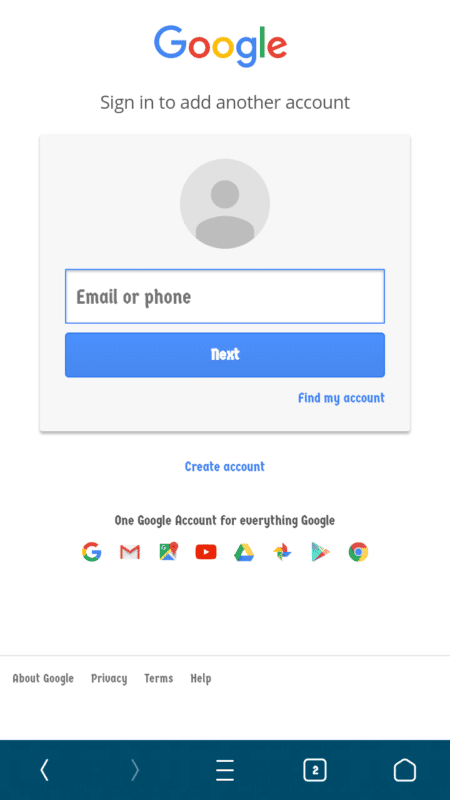
- You will be provided with a Log In Menu. Input the second Email Account details and Hit Next then follow the on-screen instructions to Log in.
Now that you are logged in, you can easily switch between emails. To do this, just Click on the profile picture or Letter at the top right corner of the screen to see all the Google accounts signed in.
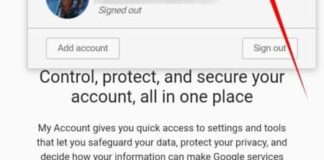
Click on whichever you want to access, and it will open. In my case, I have just one Google Account logged in.
On The Gmail App For Android/iOS
This is just for those that would like to use multiple emails on their Gmail App on their Android or iOS device.
- Open The Gmail App and Click on the Three Vertical Lines at the top left corner.
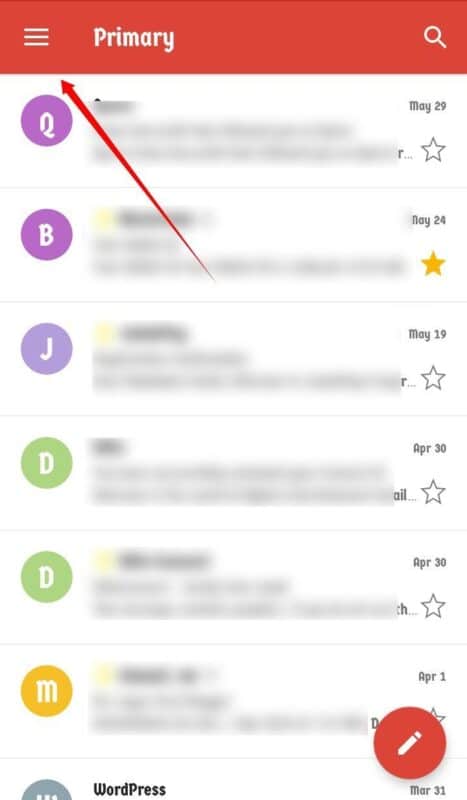
- Click On the Small Down Facing Arrow Besides your Email Account and Select Add Account.
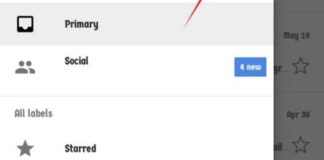
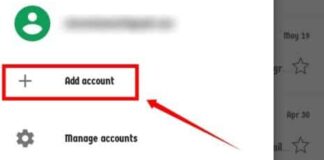
- Alternatively, You can Scroll Down, Click on Setting and then Add Account.

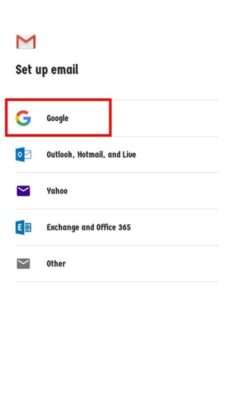
- Now Select Google.
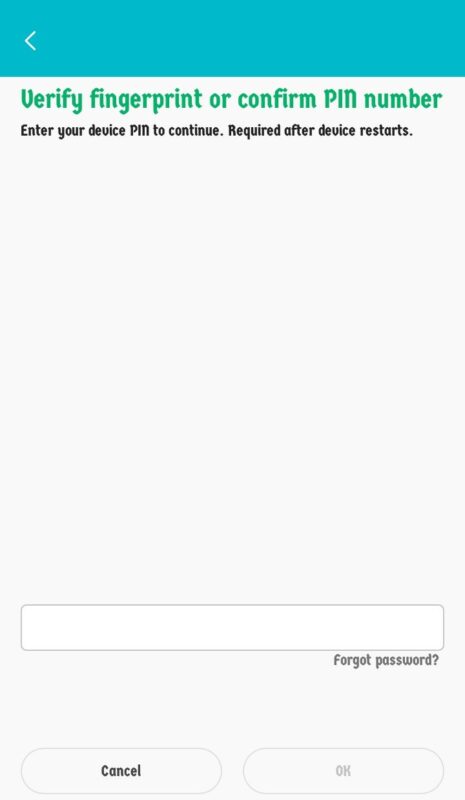
- Input PIN, Patter or Fingerprint depending on the one you used to lock your phone.
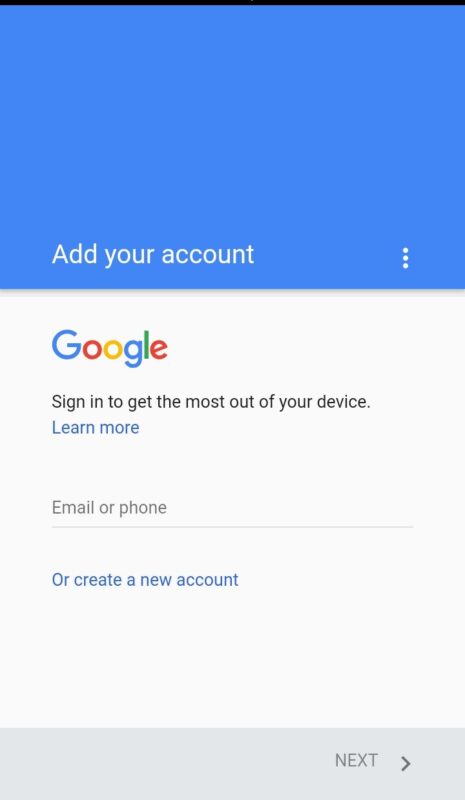
- Follow the on-screen instructions to Log In.
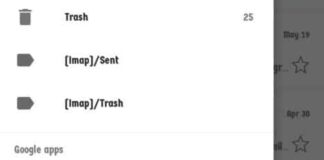
After logging in successfully, you should now see the numerous emails you have logged in when you launch your Gmail App. In my case, I have just three emails logged in as you can see in the picture below.
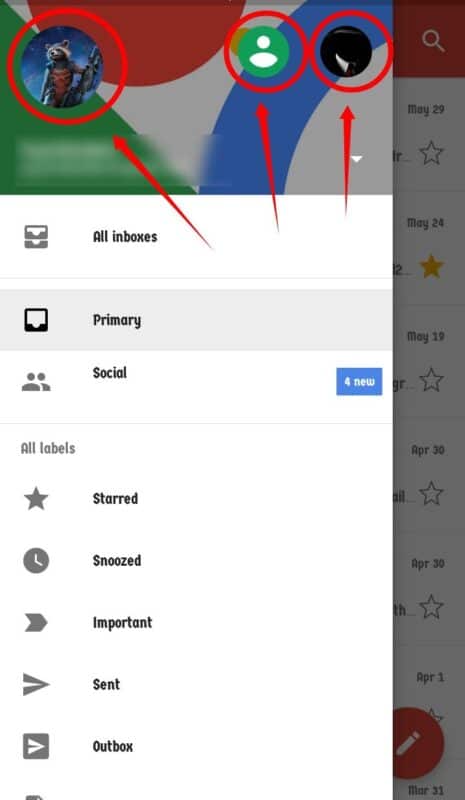
Simply click on anyone to read the emails in that particular email account. That is how to use multiple emails addresses on one Google Account in your Gmail App.
Conclusion
One thing I like about the Gmail app is not only can you use multiple emails addresses on one Google Account, but you can also use emails from other services. Services like outlook, yahoo and some more. This way, I won’t have to download different apps for my yahoo mail and outlook. They all be managed using the Gmail app for Android and iOS.
Any questions? Leave a comment down below if you have one.